Issue a certificate
A Scholiq certificate is a verifiable credential — a JSON document signed with the school's RS256 key, with a public verification URL anyone can hit to confirm the grade is genuine.
Goal
By the end you will have issued a certificate to one learner for a completed course, downloaded the PDF, and verified it against the public verification URL.
Prerequisites
- A Final grade in status Published for the learner on the course (see Grade work and give feedback).
- The signing key generated under Manage Scholiq settings → Credential Signing → Rotate signing key.
- The learner's email or DID on their Learner Profile, so they receive a notification when the certificate is issued.
Steps
-
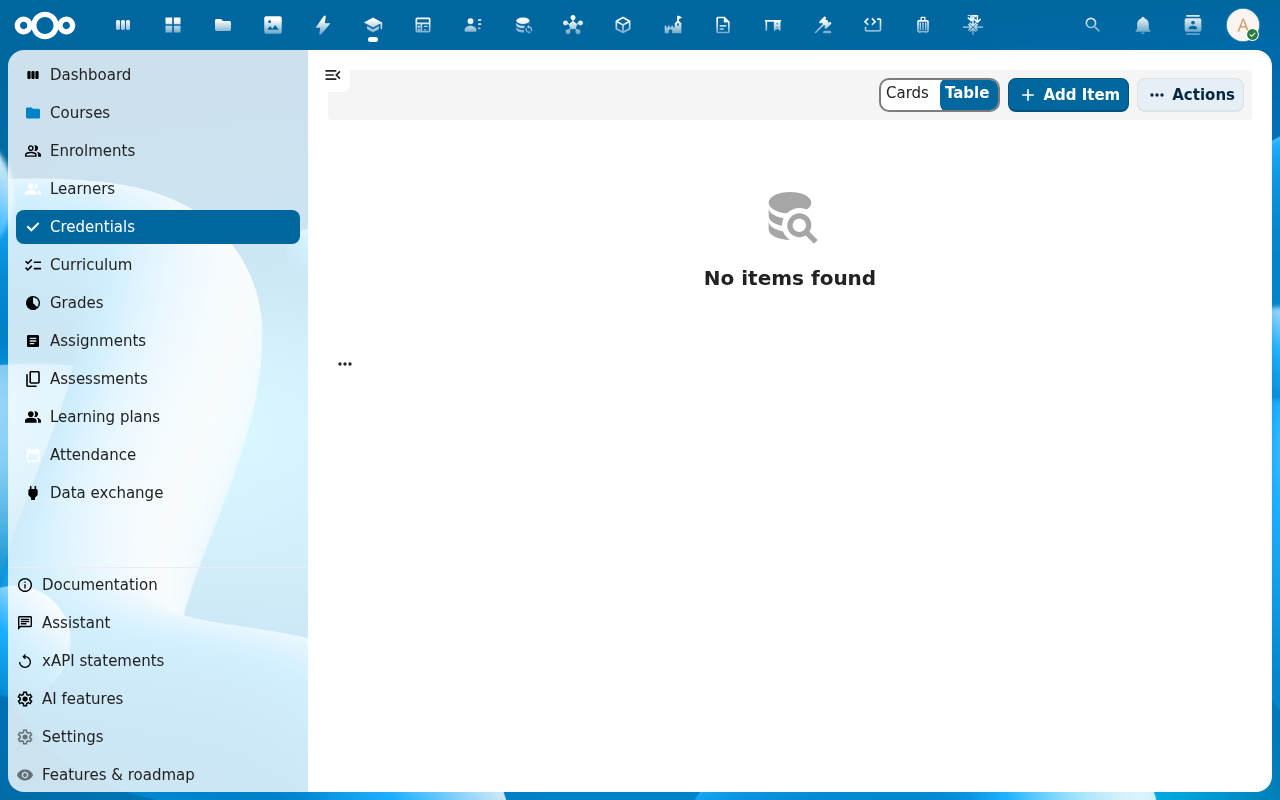
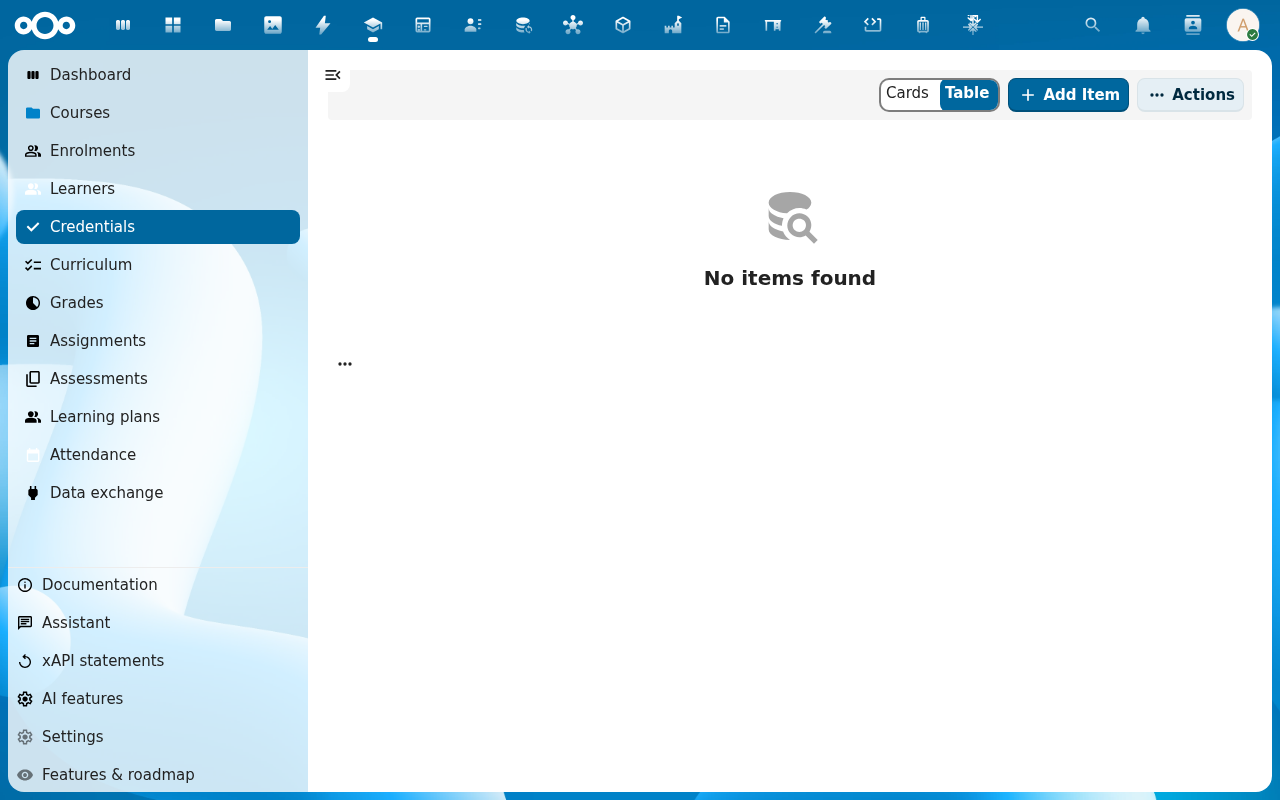
Click Credentials in the left navigation. The list shows every certificate ever issued, with status (Issued, Revoked, Expired) and the public verification URL.
-
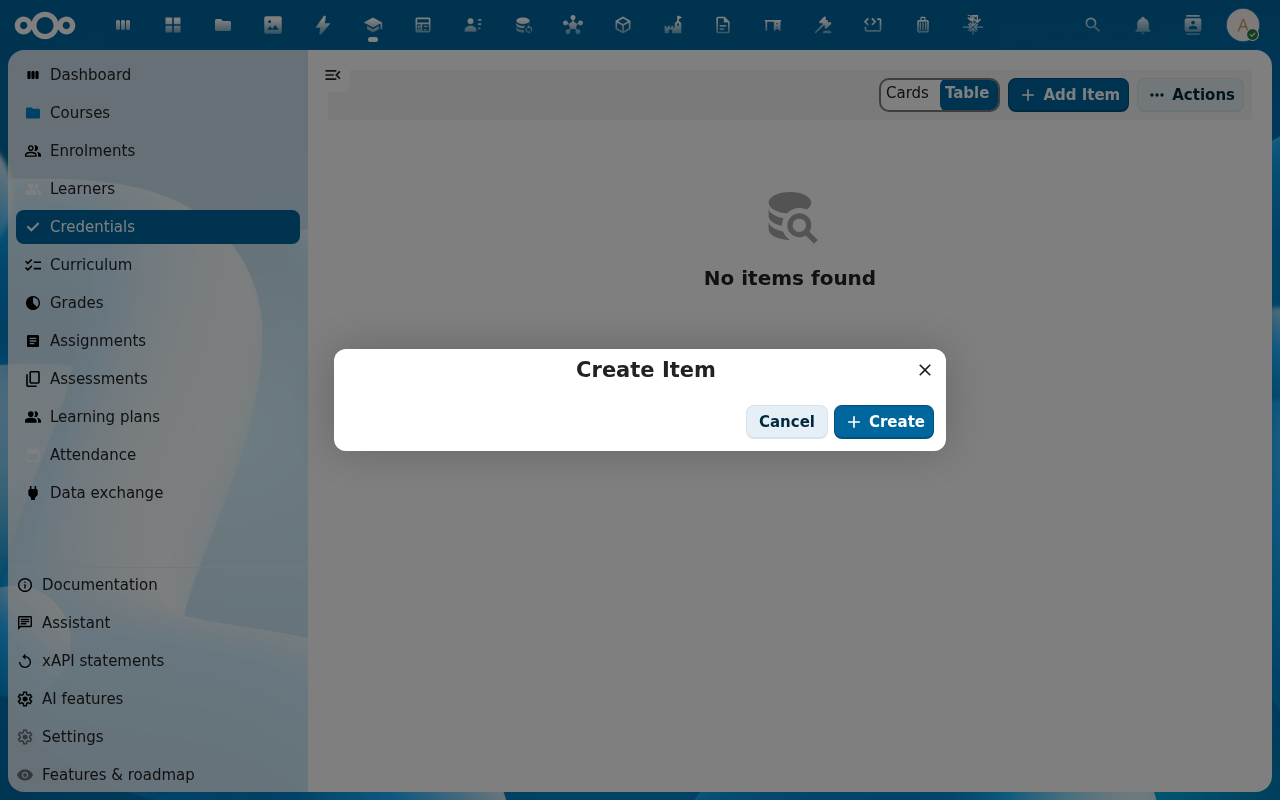
Click Add Item. Pick the Course and the Learner. Scholiq pre-fills the title (course title + "Certificate of completion"), the issue date and the final grade.
-
Pick a Template — Scholiq ships a default school-letter template; admins can add more under Curriculum → Templates. Click Issue. Scholiq signs the credential and stores it.
-
Open the new credential row to get the PDF and the public Verification URL. The learner receives both by Nextcloud notification.
-
To confirm the verification flow, open the verification URL in a private browser window. The Scholiq verifier page shows the credential's content, the issuing institution, the issue date and a Valid badge.
Verification
The certificate is issued when: the row shows status Issued with a signature timestamp, the learner sees it on their home view, and the verification URL returns Valid.
Common issues
| Symptom | Fix |
|---|---|
| "No signing key configured" on Issue | An admin still needs to generate the RS256 key — go to Manage Scholiq settings → Credential Signing → Rotate signing key. |
| Verifier page shows Signature does not match | The key was rotated after the certificate was issued and the verifier is checking against the new key. The old key is kept by Scholiq for verification — wait a minute for the cache, or contact the admin. |
| You need to revoke a certificate (typo, wrong grade) | Open the credential row and click Revoke. The status changes to Revoked and the verifier returns Revoked with the reason you give. |
Reference
- Track learner progress — how the certificate fits into the learner's overall record.
- Compliance audit pack — issued certificates are listed in the audit report.