Enrol students in a course
Enrolments link a learner to a course for a defined time window. Without an enrolment, a student cannot submit assignments, sit assessments, mark attendance or be issued a certificate.
Goal
By the end you will have one or more enrolments on the course, each tied to a learner profile, with status Active and a valid date range.
Prerequisites
- The course exists (see Create a course) and is in status Open.
- The learners exist as Learner Profiles in Scholiq. If they do not, an admin (or a teacher with the Coordinator role) creates them under Learners → Add Item, or imports them with the SIS exchange job.
- For bulk enrolment from a cohort: the cohort exists and has members. See Define your school structure.
Steps
-
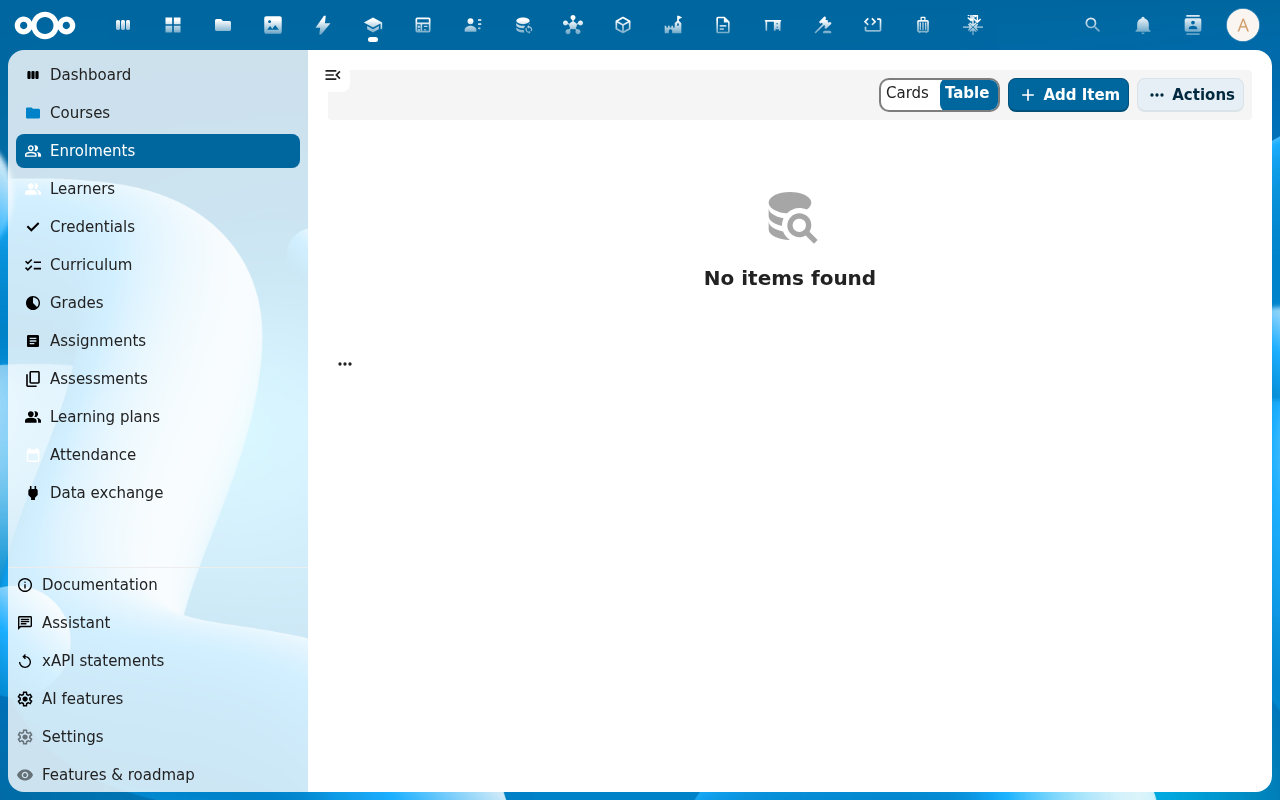
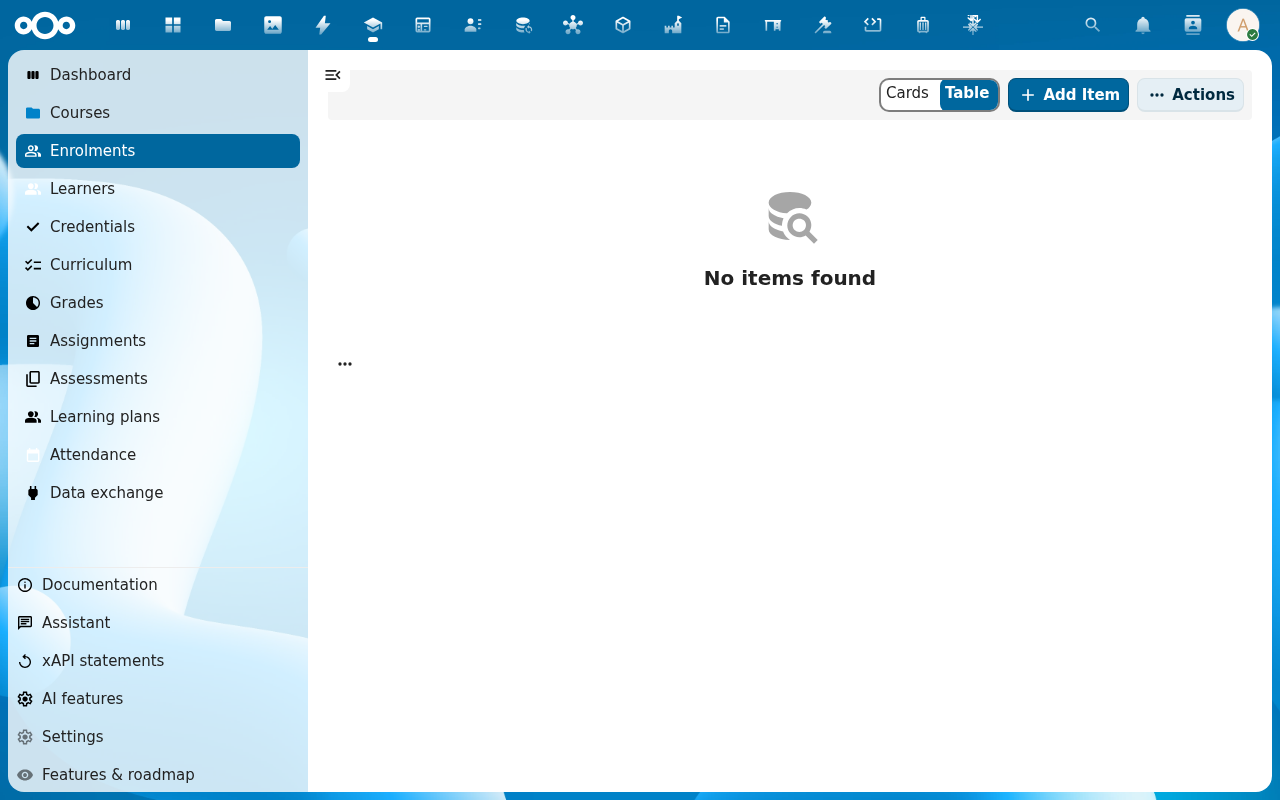
Open Scholiq and click Enrolments in the left navigation.
-
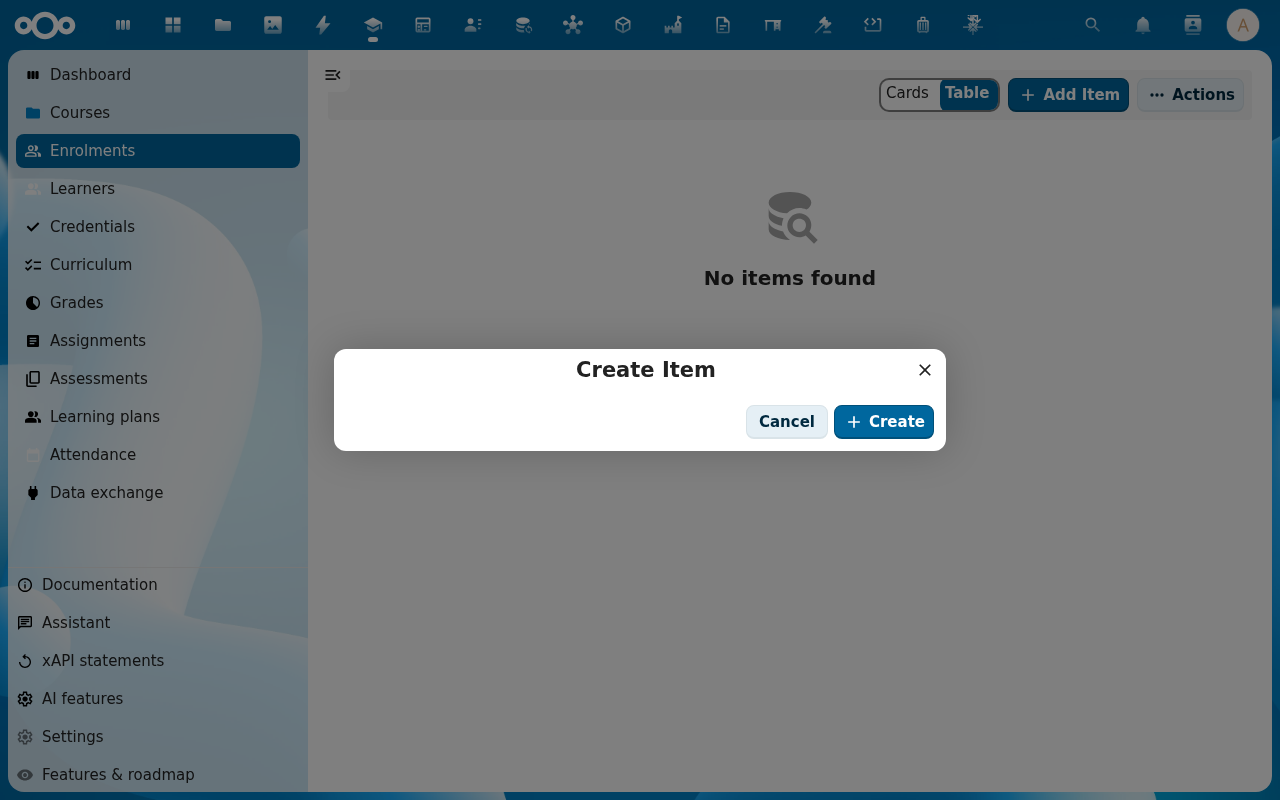
Click Add Item to enrol one learner at a time. Pick the Course, pick the Learner, set the Start and (optionally) End date and leave Status on Active.
-
For a whole class at once, open the course detail page and switch to the Enrolments tab. The toolbar shows Bulk enrol — click it to pick a cohort or paste a CSV of learner identifiers.
-
Review the preview. Scholiq shows one row per learner the bulk operation will create or update, with a status badge (new, already enrolled, unknown learner). Untick rows you want to skip.
-
Click Confirm. The dialog closes; the Enrolments tab fills with the new rows, each with the learner name, status and date window.
Verification
The enrolments are good when: the course's Enrolments tab shows the learners with status Active, and those learners can see the course in their own learner-home view.
Common issues
| Symptom | Fix |
|---|---|
| Bulk enrol says unknown learner for every row | The CSV does not match a stable learner identifier — use the Learner ID column from the Learners list, not the display name. |
| The same learner appears enrolled twice | Two enrolments with overlapping date windows are allowed (one per cohort, for example). Close the older one by setting an end date if that was not intentional. |
| "Course is not open for enrolment" | The course is in Draft or Closed status — set it back to Open on the course detail page. |
Reference
- Track learner progress — what the learner sees once they are enrolled.
- Define your school structure — cohorts make bulk enrolment one click.