Set an assignment and collect submissions
Assignments are the everyday graded work on a course: an essay, a problem set, a project, a lab report. Scholiq tracks the brief, every submission, and the grade.
Goal
By the end you will have published an assignment, seen learners submit to it, and graded at least one submission.
Prerequisites
- The course exists and has enrolments (see Create a course and Enrol students).
- You have a Rubric or Grade scale to grade against, or you accept Scholiq's default Numeric 0–100 scale.
Steps
-
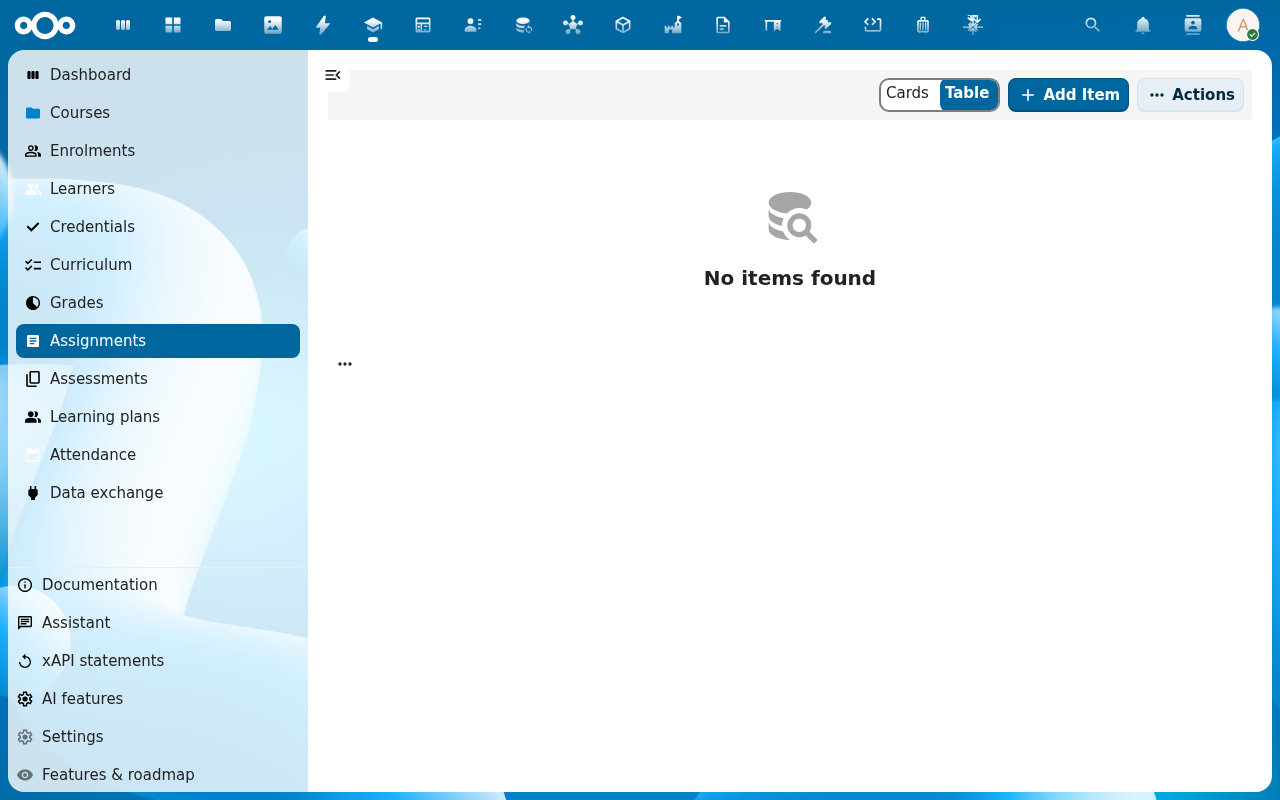
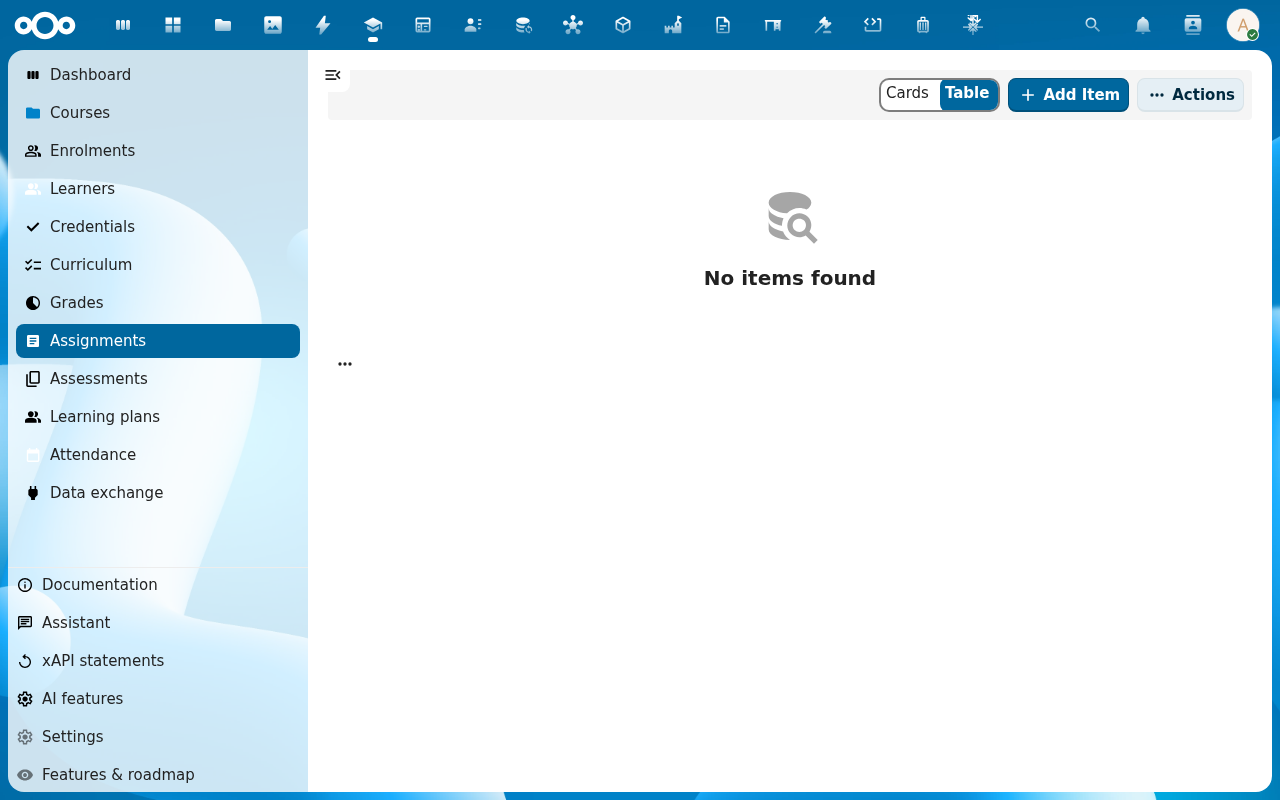
Open Scholiq and click Assignments in the left navigation. The list view shows every assignment across every course you teach.
-
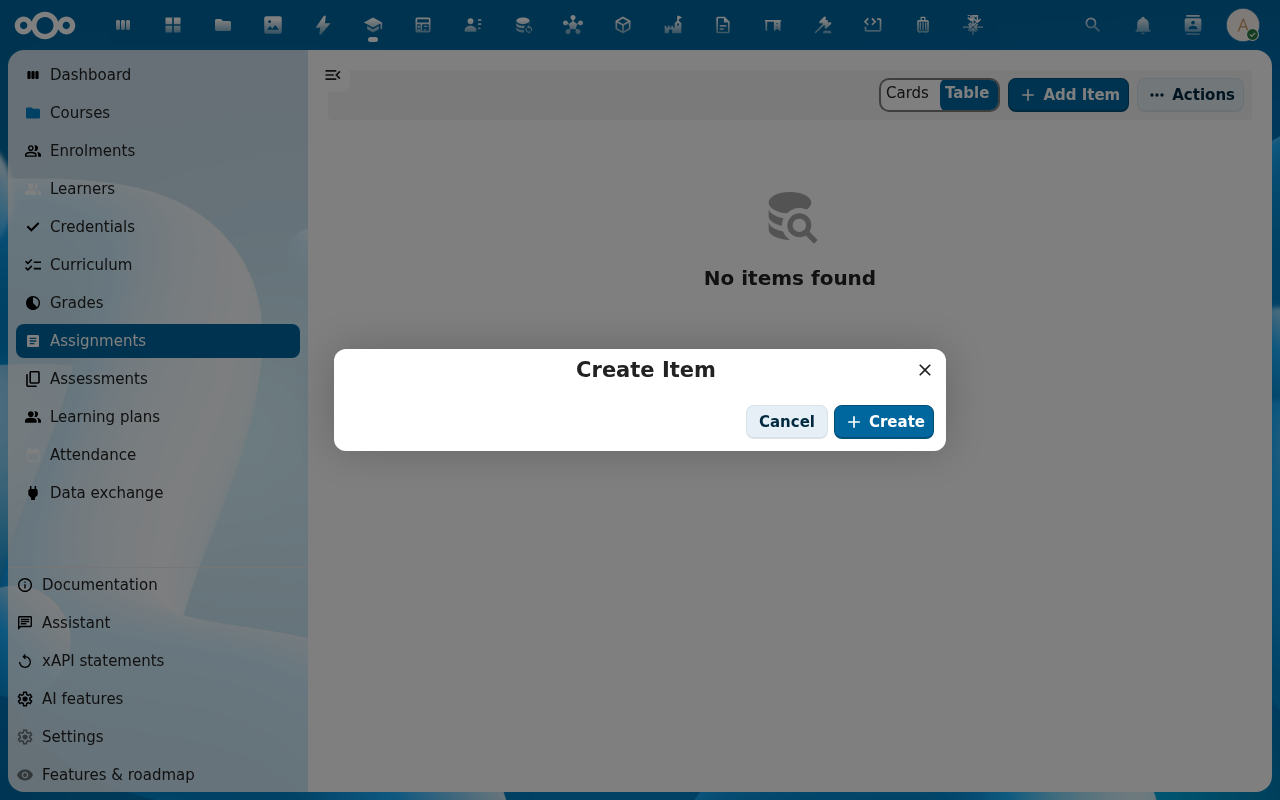
Click Add Item. The new-assignment dialog opens — fill in Title, Brief (markdown), Due date, Max grade and pick a Rubric if you have one. Pick the Course the assignment belongs to.
-
Click Save. The assignment shows up in the Assignments list and on each enrolled learner's home view. Learners submit via Submit work on their assignment view.
-
As submissions come in, click the assignment row and switch to the Submissions tab. Each row shows the learner, when they submitted, and the current grade status (pending, graded, returned).
-
Click a submission to open it. The grading view shows the submitted work, the rubric criteria (if any), a grade input and a feedback field. Fill them in and click Save grade.
Verification
The assignment cycle is complete when: the submission's status moves from pending to graded (or returned), the learner sees the grade and feedback on their home view, and the grade appears under the course's Grades tab.
Common issues
| Symptom | Fix |
|---|---|
| Learners say "I cannot find the assignment" | The assignment was saved with status Draft — open it and switch status to Published. |
| The grade input rejects your number | The value falls outside the Max grade you set on the assignment, or it does not match the rubric scale. |
| The rubric dropdown is empty | No rubrics exist yet — create one under Curriculum → Rubrics or use the default numeric scale. |
Reference
- Grade learners and publish final grades — converting submission grades into final course grades.
- Issue a certificate — once final grades are in.