Grade work and give feedback
Scholiq splits grading into two layers. Grade entries capture each piece of marked work (an assignment, an assessment, a participation mark). Final grades are the published, signed result for the course — what shows up on the transcript and certificate.
Goal
By the end you will have viewed all the grade entries for one learner on one course, calculated a final grade against the course's grade scale, and published it.
Prerequisites
- Graded submissions on the course (see Set an assignment and collect submissions).
- A Grade scale picked on the course (default Numeric 0–100; alternatives live under Curriculum → Grade scales).
- The course is in status Closed or close to it — Scholiq lets you publish final grades earlier, but the audit pack flags grades signed against an open course.
Steps
-
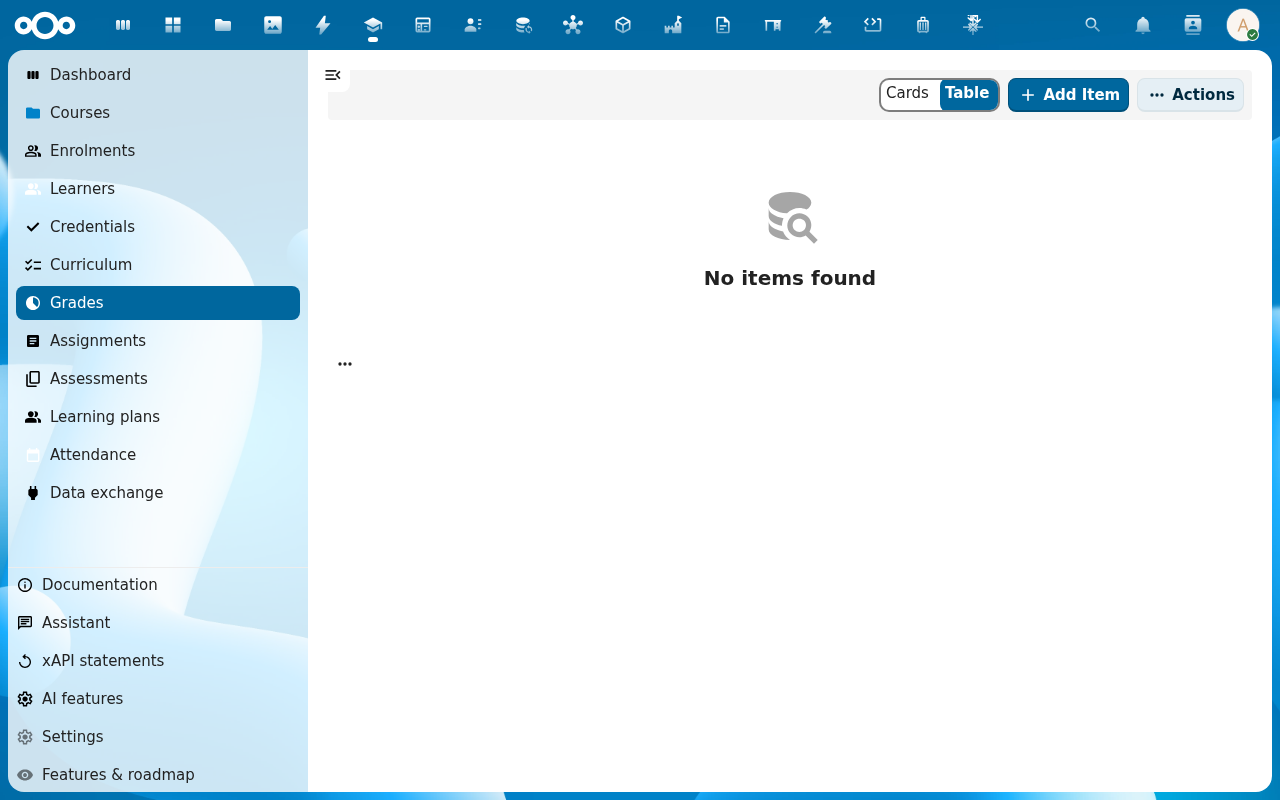
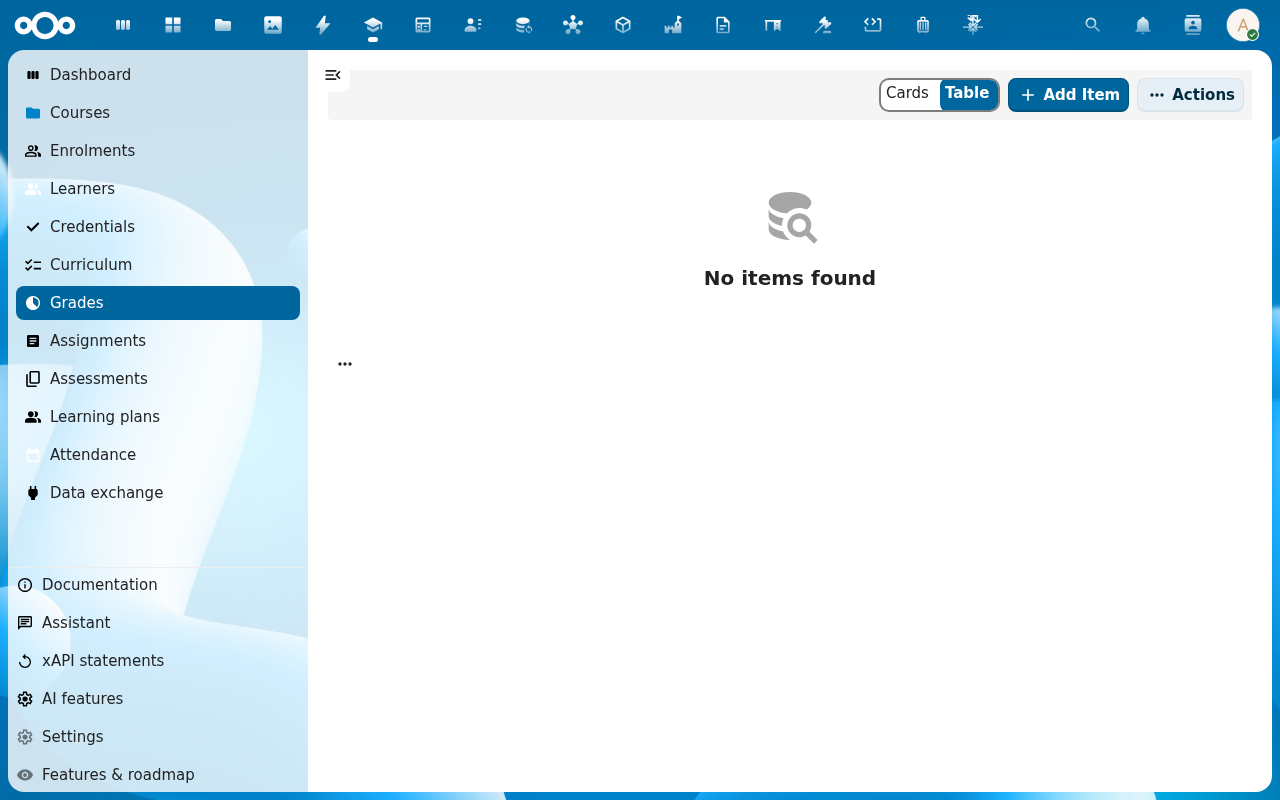
Click Grades in the left navigation. The list shows every grade entry across every course, filterable by course, learner and date.
-
Filter to your course. Each row is a single entry: assignment grade, assessment grade, participation mark. The Weight column shows how much it counts toward the final grade.
-
Open one entry to see the breakdown — the rubric criteria, the comment you wrote when marking, and the audit trail.
-
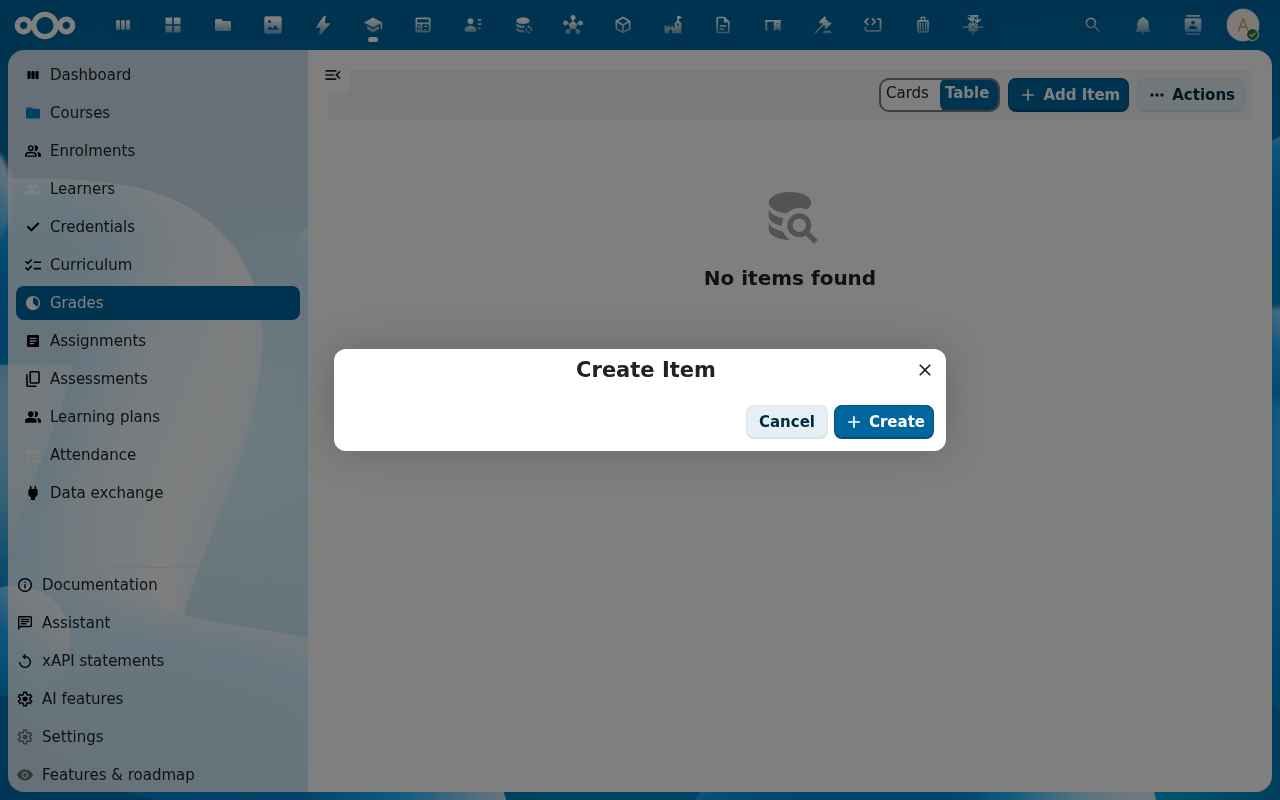
Switch to Final grades (in the same Grades section). Click Add Item and pick the Course and Learner. Scholiq pre-fills the calculated grade from the weighted average of the learner's entries; override it if needed and add a short reason.
-
Click Publish. The final grade lands on the learner's profile, on the course's Grades tab and in the course's compliance audit pack. Once published it is signed against the course's RS256 key — see Manage Scholiq settings for key rotation.
Verification
The grade is published when: the Final grade row shows status Published with a signature timestamp, the learner sees it on their home view, and the course's Grades tab now lists one final grade per learner with no Pending rows.
Common issues
| Symptom | Fix |
|---|---|
| The calculated grade is blank | Some grade entries on the course have no Weight — open Curriculum → Grade scales and set the default weight, or set the weight per-assignment. |
| "Signing key not configured" on publish | An admin still needs to generate the RS256 key — go to Manage Scholiq settings → Credential Signing → Rotate signing key. |
| You need to amend a published final grade | Open the row and click Amend — Scholiq creates a new signed version and keeps the old one with status Superseded. |
Reference
- Issue a certificate — turns the final grade into a verifiable credential.
- Compliance audit pack — how published grades feed the audit report.